Language
Search Docs
Documentation
Document Info
The Line Creator Beta is a web-based tool designed to help you create and manage bus lines for DBus World maps. This tool allows you to build complex bus networks with multiple lines, routes, and stops, making it easier to create comprehensive---
This guide covers the Line Creator Beta as of October 2025. Features and interface may evolve as development continues. Feature exclusive to our Patreon Drivers
Features
- Multi-Line Support: Create multiple bus lines within a single draft (up to 10-100+ lines per map)
- Tabbed Interface: Easy navigation between different lines using tabs
- Draft Management: Save and load your work as drafts
- XML Export: Export your lines as properly formatted XML files
- Individual Line Export: Export single lines for testing or partial updates
- Form Validation: Real-time validation with data preservation on errors
- Stop Integration: Import and use stops from your
stops.xmlfile
Prerequisites
Before using the Line Creator, you need:
- Account Access: You must be logged into the website
- Stops Data: A valid
stops.xmlfile uploaded to your account - Basic XML Knowledge: Understanding of CBP XML structure is helpful but not required
Preparing Your Stops File
Your stops.xml file should contain bus stop definitions with the following structure:
<code><stops>
    <stop uid="1" name="Central Station" x="100" y="200" />
    <stop uid="2" name="Main Street" x="150" y="250" />
    <!-- More stops... -->
</stops>
</code>
Upload this file through the Line Creator interface before creating lines.
Getting Started
- Navigate to the Line Creator Beta page
- Upload your
stops.xmlfile if you haven't already - Start creating your first bus line
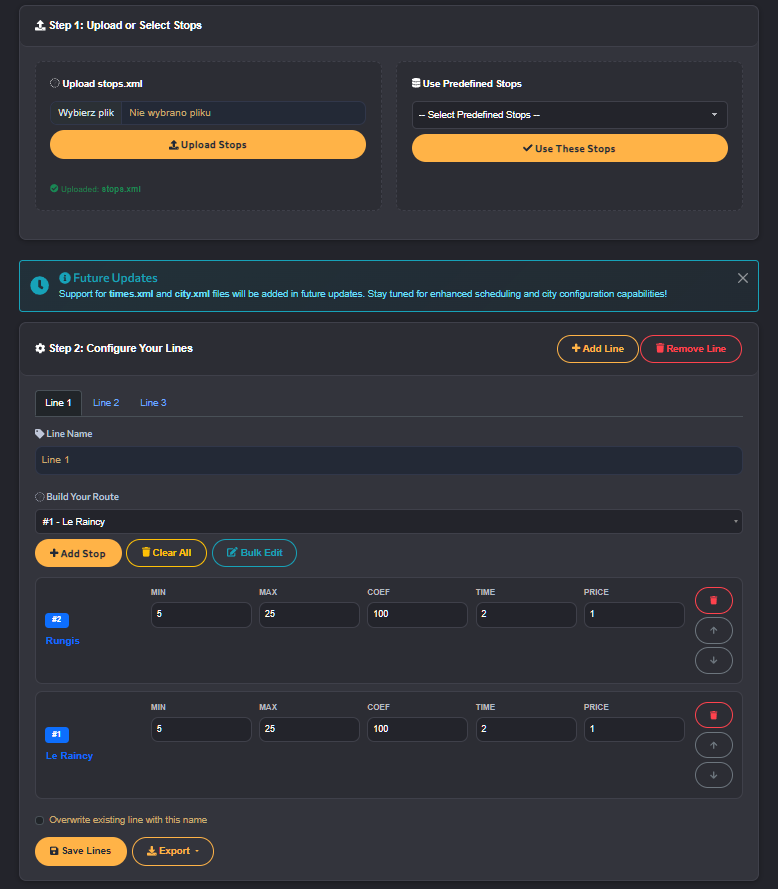
Figure 1: Main Line Creator Beta interface showing the tabbed multi-line editor
Interface Overview
Step 1: Upload Stops
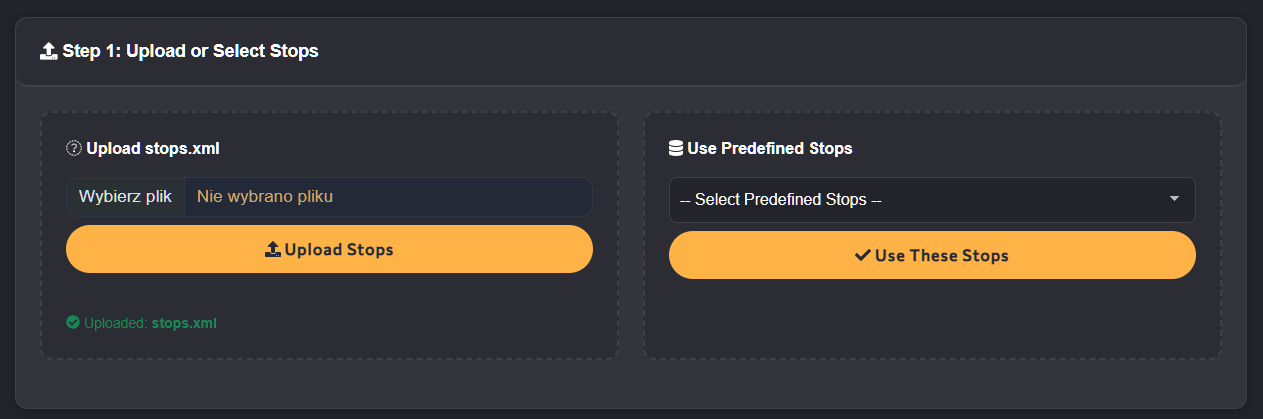
Figure 2: Step 1 - Upload your stops.xml file and view stop count
- File Upload: Upload or replace your
stops.xmlfile - Stop Count: View the number of stops loaded
- Validation: The system validates your XML structure
Step 2: Line Configuration
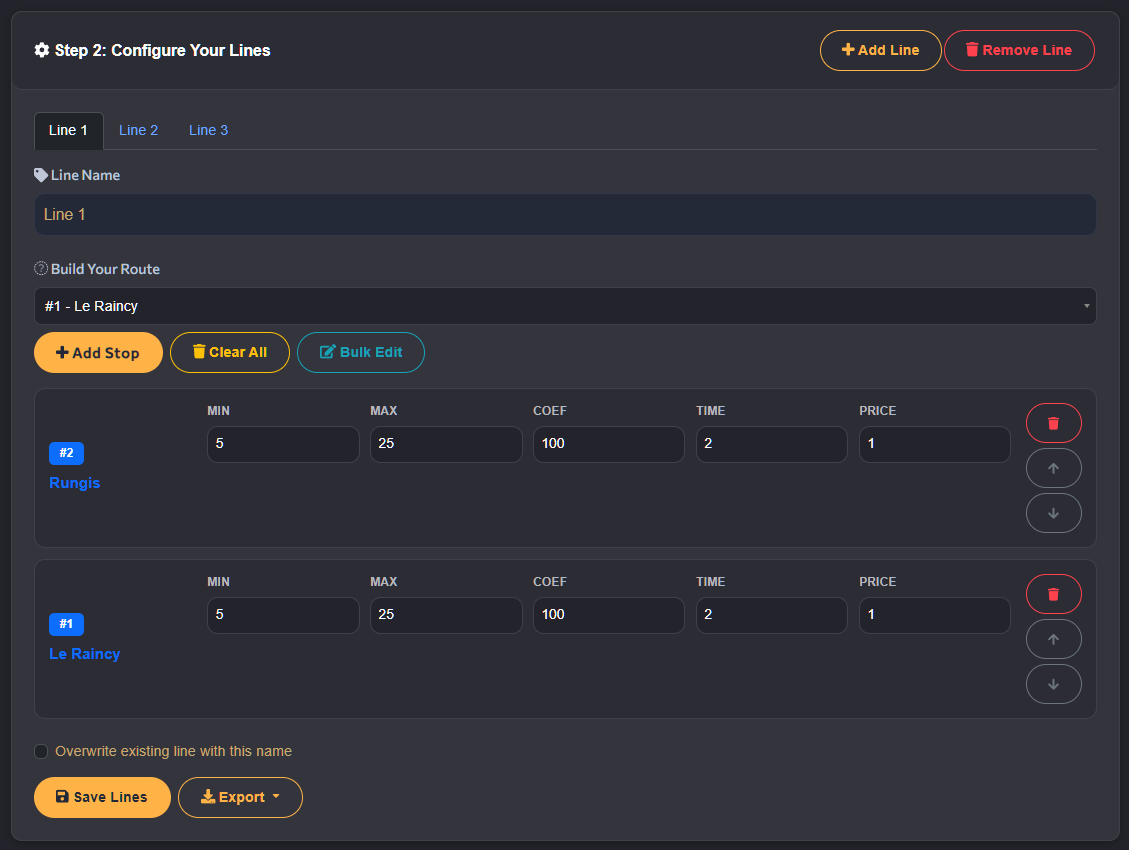
Figure 3: Line tabs showing multiple bus lines with add/remove controls
- Line Tabs: Switch between different bus lines
- Add Line: Create new bus lines (+ button)
- Remove Line: Delete the current line (× button, appears when you have multiple lines)
Line Properties
Each line has the following configurable properties:
- Line Number: The display number/name of the bus line
- Adult Coefficient: Revenue multiplier for adult passengers (default: 75)
- Reduced Rate: Percentage of adult fare for reduced-rate passengers (default: 15)
- City Line: Whether this is a city line (true/false, default: true)
Routes and Stops
Adding Routes

Figure 4: Adding routes to a bus line with route properties
- Click "Add Route" to create a new route for the current line
- Each route represents a directional path (e.g., "Outbound" or "Inbound")
Route Properties
- Route Name: Descriptive name for the route
- Travel Time: Total time for the route in minutes
- Unique ID: Auto-assigned identifier
Adding Bus Stops to Routes
For each route, you can add bus stops from your uploaded stops.xml:
- Click "Add Stop" in the route section
- Select a stop from the dropdown (shows stop names and UIDs)
- Configure stop properties:
- Passengers Min: Minimum passengers at this stop (default: 5)
- Passengers Max: Maximum passengers at this stop (default: 25)
- Boarding Coefficient: Percentage of passengers who board (default: 100)
- Next Stop Time: Travel time to next stop in minutes (default: 2)
- Next Stop Price: Fare to next stop (default: 1)
Stop Management
- Reorder Stops: Drag and drop stops to change route order
- Remove Stops: Use the × button next to each stop
- Duplicate Stops: Not allowed - each stop can only appear once per route
Working with Multiple Lines
Creating New Lines
- Click the "+" button next to the line tabs
- A new tab will be created with default settings
- Configure the line properties and routes as needed
Switching Between Lines
- Click on any line tab to switch to that line
- The active line is highlighted
- All changes are automatically saved to your draft
Managing Line Tabs
- Line Names: Tabs show line numbers/names for easy identification
- Remove Lines: Click the × button on a tab to delete that line
- Minimum Lines: You must have at least one line
Draft Management
Saving Your Work

Figure 6: Draft management sidebar showing saved drafts and line counts
- Your work is automatically saved as you make changes
- No manual save button needed
- Changes are preserved even if you navigate away and return
Loading Drafts
- Access your recent drafts from the sidebar
- Click on any draft to load it
- Drafts are sorted by last modified date
Draft Information
- Draft Name: Auto-generated based on your lines
- Last Modified: When the draft was last updated
- Line Count: Number of lines in the draft
Export Options
Export All Lines
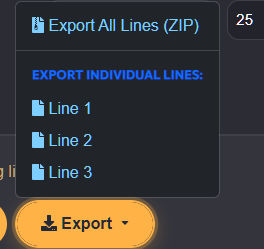
Figure 7: Export buttons for all lines and individual line export
- Click "Export All Lines" button
- Downloads a ZIP file containing:
lines.xml: All your configured linesstops.xml: Your uploaded stops file
- Use this for complete map packages
Export Individual Lines
- Click "Export Line" on a specific line tab
- Downloads a ZIP file containing:
lines.xml: Only the selected linestops.xml: Your uploaded stops file
- Useful for testing individual lines or partial updates
XML Format
The exported lines.xml follows CBP standards:
<code><lines map_type="cbp">
    <line uid="1" number="101" adultCoef="75" reducedRate="15" city="true">
        <route uid="1" name="Outbound" time="45">
            <busstop uid="1" passengersMin="5" passengersMax="25" coefOn="100" nextStopTime="2" nextStopPrice="1" />
            <busstop uid="2" passengersMin="3" passengersMax="20" coefOn="100" nextStopTime="3" nextStopPrice="1" />
        </route>
    </line>
</lines>
</code>
Validation and Error Handling
Form Validation
- Real-time Validation: Checks for required fields and valid data
- Data Preservation: Your work is saved even if validation fails
- Error Messages: Clear feedback on what needs to be corrected
Common Validation Rules
- Line number is required
- At least one route per line
- At least one stop per route
- Valid numeric ranges for coefficients and times
- Unique stop UIDs within routes
Error Recovery
- If validation fails, your data remains in the form
- Correct the highlighted errors and try again
- No work is lost during validation failures
Troubleshooting
Common Issues
"No stops.xml uploaded"
- Solution: Upload your stops.xml file in Step 1
- Check: Ensure the file is valid XML and contains stop definitions
"Line not found" (when exporting individual lines)
- Solution: Make sure the line exists and has content
- Check: Verify you haven't accidentally deleted the line
Validation errors clearing my work
- Solution: This issue has been fixed - your data is now preserved
- Workaround: If you encounter this, refresh and your draft should reload
Stops not appearing in dropdown
- Solution: Re-upload your stops.xml file
- Check: Ensure stop UIDs are unique and properly formatted
Getting Help
- Check this guide for common solutions
- Review your XML files for syntax errors
- Contact support if issues persist
Future Features
The Line Creator is actively being developed with these upcoming features:
- Times Support: Import and configure
times.xmlfor detailed scheduling - City Configuration: Enhanced
city.xmlintegration for city-wide settings - Advanced Routing: Automatic route optimization and validation
- Import Existing Lines: Load existing CBP lines for editing
Technical Notes
File Formats
- Input:
stops.xml(CBP format) - Output:
lines.xml(CBP format) +stops.xml(unchanged)
Limitations
- Maximum 100 lines per draft (can be increased if needed)
- Requires valid stops.xml with proper UID structure
- Browser-based tool (works best in modern browsers)
Browser Compatibility
- Chrome 90+
- Firefox 88+
- Safari 14+
- Edge 90+
This guide covers the Line Creator Beta as of October 2025. Features and interface may evolve as development continues.