Use ← → or P/N keys
Language
Search Docs
Documentation
Document Info
Category: Lines
Updated: Jan 1, 2026
Navigation
Welcome to the DBus World Marketplace! This guide will help you discover new lines and share your own creations with the community.
Discovering Content
Browsing the Marketplace
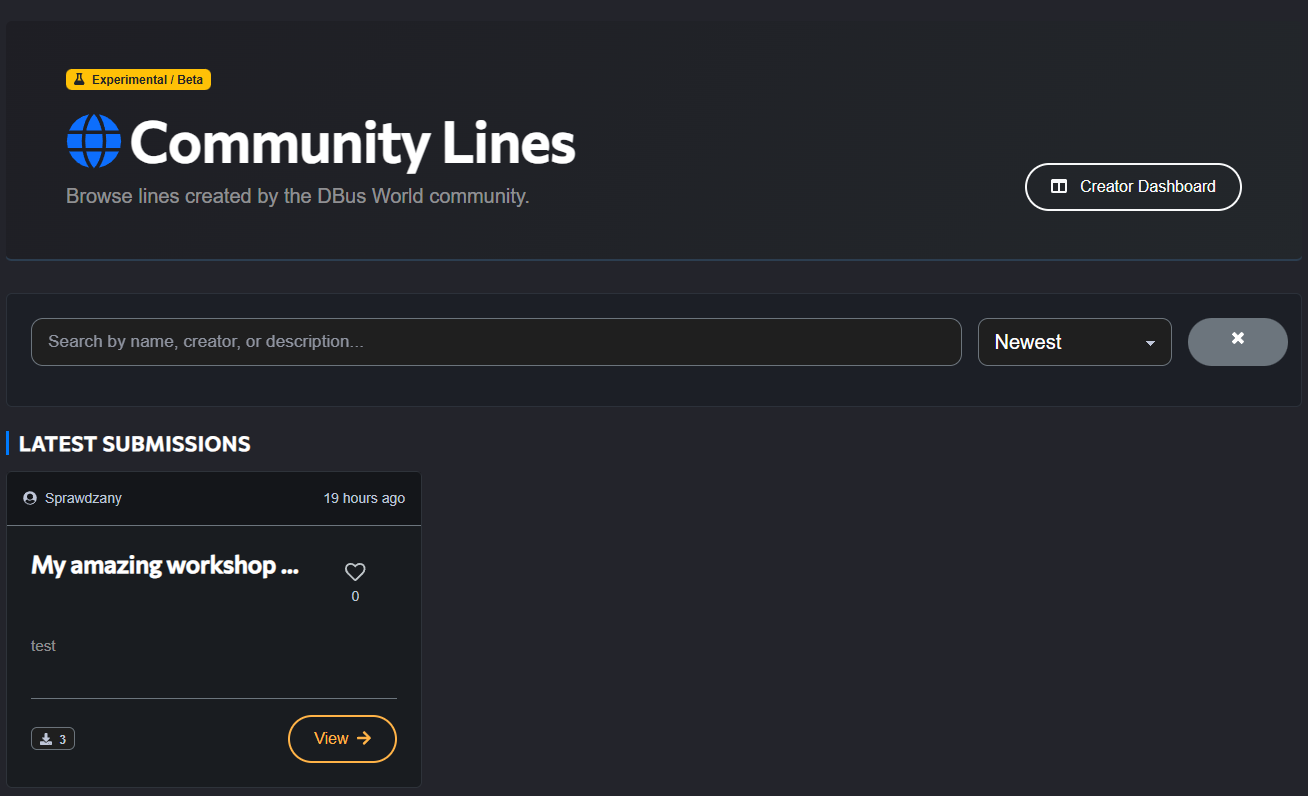
Visit the Marketplace index to see the latest submissions from the community.
- Search: Use the search bar to find lines by Name, Creator, or Keywords.
- Filters: Sort by "Newest" to see fresh content or "Top Rated" (coming soon).
Viewing Line Details
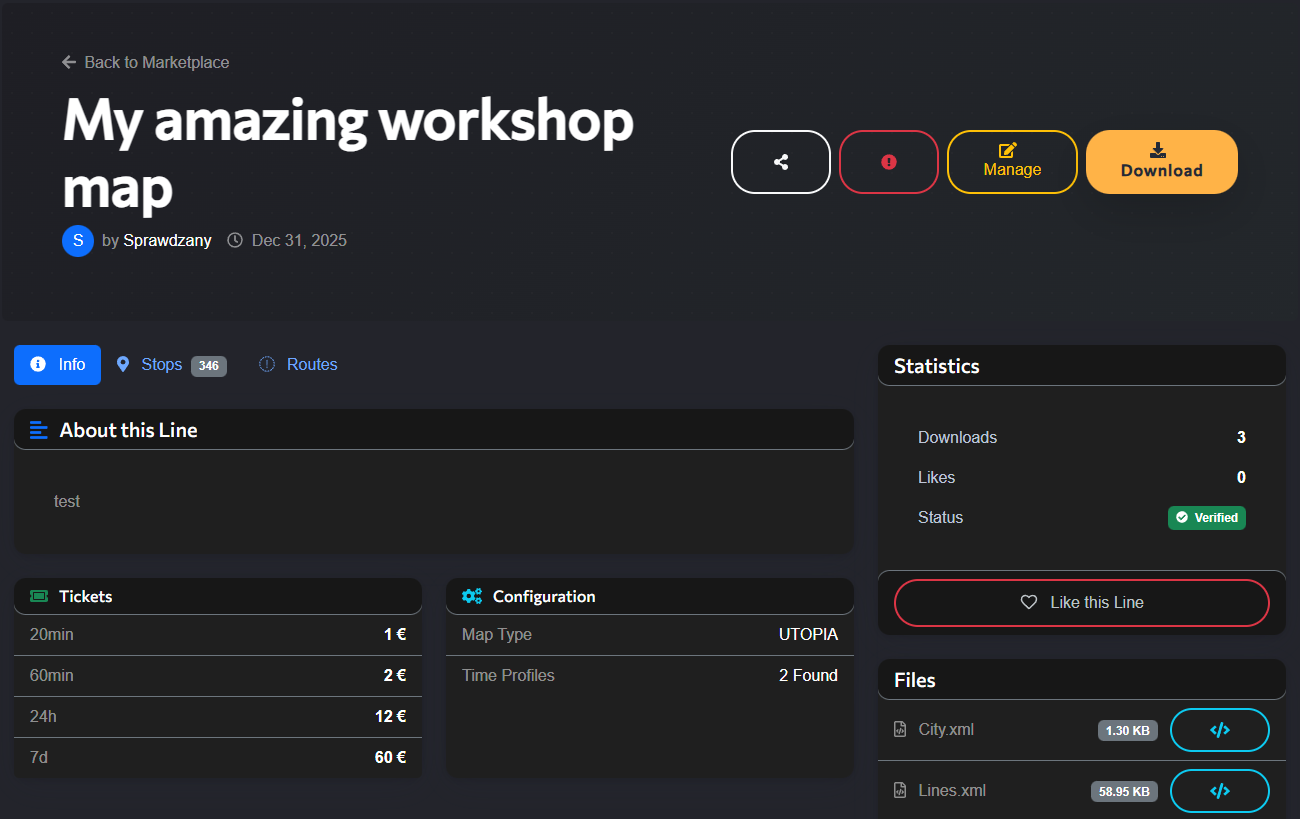
Click on any line card to open its Details Page. Here you will find comprehensive information:
- Route Info: Map type, number of stops, and estimated duration.
- Ticket Prices: View the configured ticket costs for different zones or time periods.
- Files: Preview the XML files included in the package (
lines.xml,stops.xml, etc.).
Downloading a Line
To use a line in your game:
- Navigate to the Line Details page.
- Click the orange Download button.
- A
.zipfile containing all necessary XML files will download to your computer. - Extract these files into your game's relevant map folder.
For Creators: Uploading & Managing
Share your creativity with the world! The Marketplace supports full line configurations.
Accessing the Creator Dashboard
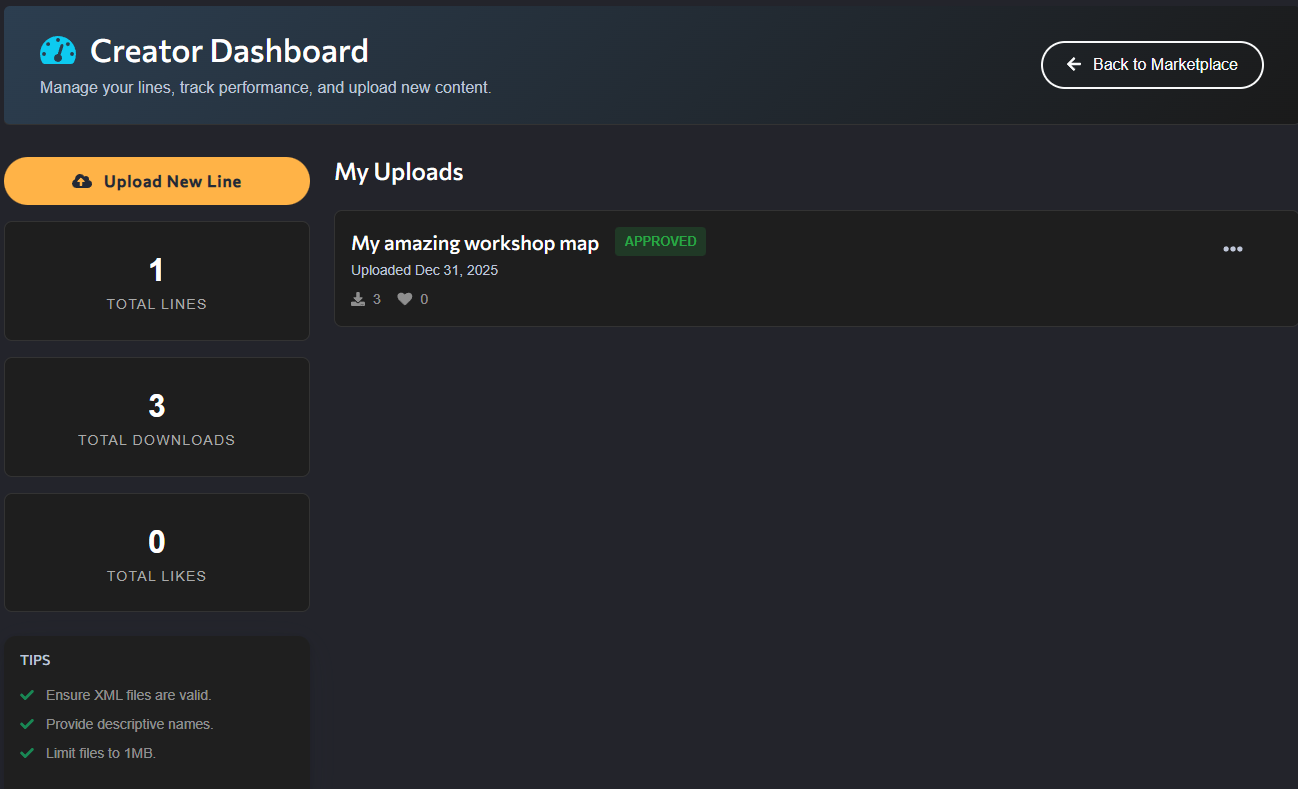
To start managing your content, click the Creator Dashboard button located at the top right of the Marketplace index.
- Stats Overview: Track total downloads and likes across all your lines.
- My Lines: A list of every line you have uploaded, with their current status (Public, Pending, or Rejected).
Uploading a New Line
Ready to publish?
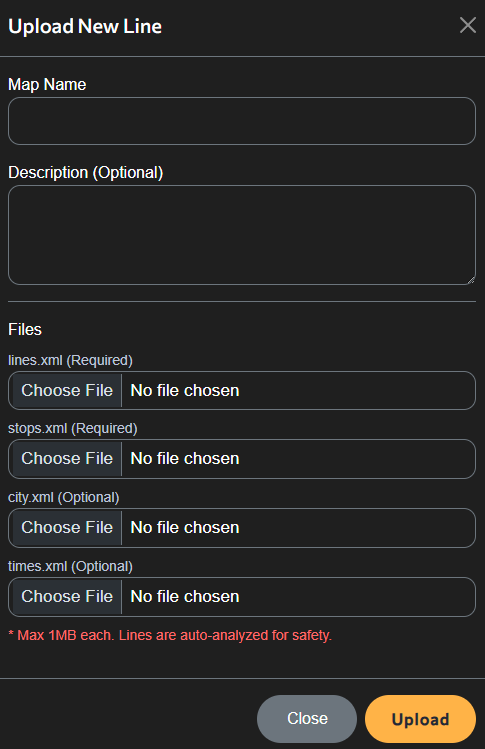
- Click Upload New Line on your dashboard.
- Map Name: Give your line a clear, descriptive name (e.g., "City Center to Airport").
- Description: Write a brief description of the route. Mention special features or requirements.
- File Uploads:
lines.xml(Required): The core path data.stops.xml(Required): Stop definitions.city.xml×.xml(Optional): Additional configuration.
Note: Maximum file size is 1MB per file.
- Click Submit.
Moderation Process
After uploading, your line will be marked as Pending.
- Review: Our staff will review your files to ensure they are safe and valid.
- Approval: Once approved, you will receive a notification, and the line will become visible to everyone.
- Rejection: If there is an issue (e.g., broken files), it may be rejected. Check your notifications for the reason, fix the issue, and re-upload.
Managing Existing Lines
From the Dashboard or Line Details page, click the Manage button to:
- Edit Details: Update the description or name.
- Update Files: Upload new versions of your XML files (e.g., bug fixes).
- Delete: Permanently remove your line from the Marketplace.
Reporting Issues
If you find a line that is broken, spam, or inappropriate:
- Go to the Line Details page.
- Click the Red Flag Icon
- Select a reason and provide details.
- Our moderation team will review the report and take action.